

How to Improve Website Speed With WordPress | Tips in 2026

Today’s internet users expect websites to load quickly and run smoothly, making site speed one of the most important factors for online success. A slow website can drive visitors away, reduce conversions, and negatively impact search engine rankings, which ultimately affects your brand’s credibility and long-term growth.
Even with powerful platforms like WordPress, many site owners overlook optimization techniques that help maintain peak performance and deliver a seamless user experience.
Without addressing these issues, your website may suffer from higher bounce rates, lower engagement, and missed opportunities for lead generation and sales.
Fortunately, there are effective methods and tools available that anyone can use to boost site speed without needing advanced technical knowledge.
In this guide, you’ll learn how to improve loading time, enhance SEO, optimize performance, and deliver a better user experience, ensuring your website stays fast, efficient, and capable of meeting the demands of today’s audience while helping your business achieve measurable results.
“Ready to boost your website’s speed and performance?
Book your session today!”
Table of Contents
- Why Website Speed Matters in 2026?
- Common Causes of a Slow WordPress Site
- Tips to Improve Website Speed with WordPress
- Best Plugins to Boost WordPress Website Speed
- How to Test Your WordPress Website Speed?
- Common Mistakes to Avoid
- Advanced Tips For Experts
1. Why Website Speed Matters in 2026?
A fast website is no longer optional in 2026, and it’s essential for success. Users expect pages to load instantly, and delays can turn them away. Slow websites lead to frustration, lower engagement, and fewer conversions.
Search engines also prioritize speed, affecting how easily people find your site. By improving your website’s performance, you create a better experience that keeps visitors coming back.

Key Reasons:
1. Better User Experience – Fast-loading pages let visitors navigate smoothly, keeping them engaged.
2. Higher Conversion Rates – Quick pages encourage users to complete actions like purchases or sign-ups.
3. Improved SEO Rankings – Search engines favor faster websites, boosting your visibility in search results.
4. Lower Bounce Rates – Users are less likely to leave when pages load quickly.
5. Mobile Optimization – Speed is crucial for a seamless experience on smartphones and tablets.
6. Enhanced Brand Reputation – A responsive website reflects professionalism and builds trust.
7. Increased Revenue Opportunities – Faster sites encourage interactions, leads, and sales growth.
2. Common Causes of a Slow WordPress Site
A slow WordPress site can have a significant impact on your website’s performance, user experience, and search engine rankings. Visitors expect pages to load quickly, and delays can lead to higher bounce rates, lower engagement, and lost conversions.
Understanding the common causes of slow websites is the first step toward improving speed and efficiency. Many factors, from hosting and theme choices to plugin usage and unoptimized content, can contribute to sluggish performance.
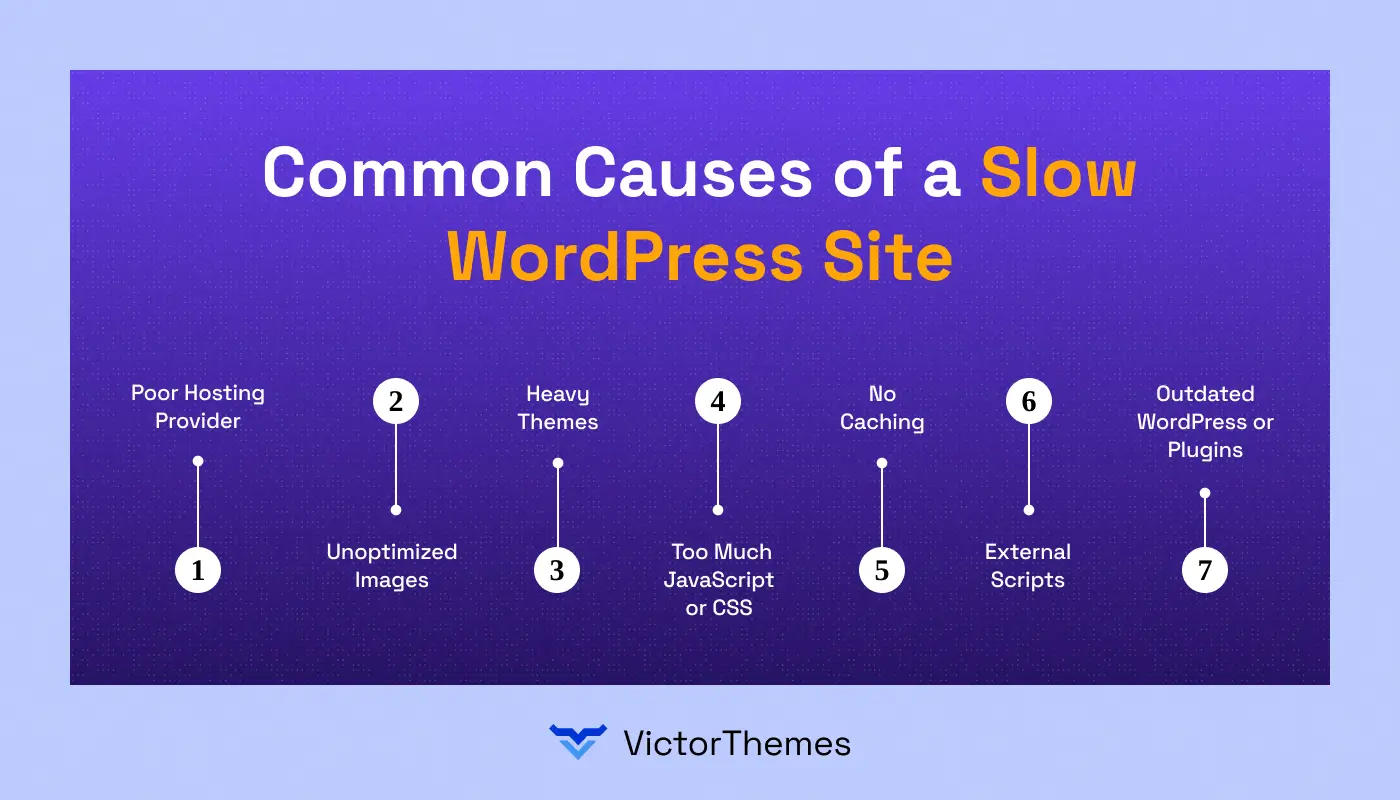
Here are the key reasons your site may be loading slowly:
1. Poor Hosting Provider – Low-quality hosting can lead to slow server response times and downtime.
2. Unoptimized Images – Large image files increase page load times and strain resources.
Excessive Plugins – Using too many plugins or poorly coded plugins can slow your site.
3. Heavy Themes – Themes with too many features or complex designs can impact performance.
4. Too Much JavaScript or CSS – Unminified or excessive scripts and stylesheets can delay page rendering.
5. No Caching – Without caching, every page request loads content from scratch, slowing down the site.
6. External Scripts – Ads, fonts, or third-party tools can add extra loading time.
7. Outdated WordPress or Plugins – Old versions can create inefficiencies and security risks.
3. Tips to Improve Website Speed with WordPress
Website speed is one of the most critical factors for your WordPress site’s success in 2026. A slow-loading website can frustrate visitors, reduce engagement, and negatively impact conversion rates.
It also affects your search engine rankings, as Google and other search engines prioritize fast websites in their results. Improving your WordPress site’s performance requires a combination of optimization strategies, the right plugins, and best practices tailored to your site’s specific needs.

Below are key techniques to help your website load faster and operate more efficiently:
1. Optimize Images – Compress and resize images without losing quality to reduce page load times.
2. Use Caching Plugins – Implement caching to store static versions of your pages for faster delivery.
3. Minimize CSS and JavaScript – Reduce, combine, and defer unnecessary scripts and styles to speed up rendering.
4. Choose a Fast Hosting Provider – High-quality hosting ensures quick server response times and reliability.
5. Enable Content Delivery Networks (CDN) – Distribute content across multiple servers to reduce latency and improve load times globally.
6. Keep WordPress, Themes, and Plugins Updated – Regular updates improve performance and security.
7. Limit Unnecessary Plugins – Remove unused or poorly coded plugins that can slow your site.
8. Use Lightweight Themes – Opt for simple, optimized themes that don’t overload your pages with extra features.
9. Enable GZIP Compression – Compress website files to reduce the amount of data sent to users’ browsers.
10. Optimize Database – Regularly clean and optimize your WordPress database to enhance performance.
4. Best Plugins to Boost WordPress Website Speed
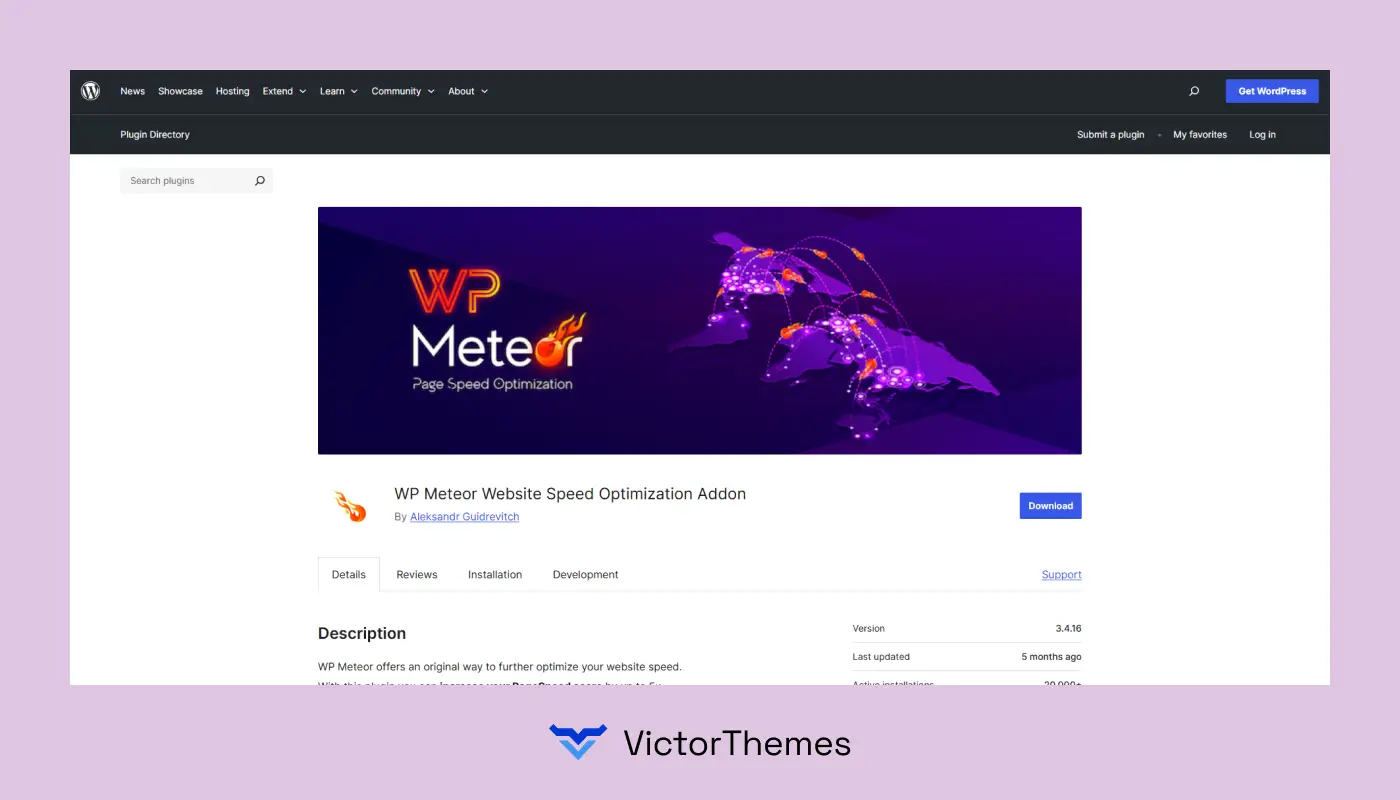
1. WP Meteor
WP Meteor is a premium caching plugin known for its user-friendly interface and powerful performance enhancements. It automates many optimization tasks, making it ideal for users seeking a hassle-free solution.
Consider For
- E-commerce websites require robust performance.
- Users seeking an all-in-one optimization solution.
- Websites aiming to improve Core Web Vitals.
Not Consider For
- Users on a tight budget (as it’s a paid plugin).
- Those who prefer a lightweight, minimalistic approach.
Price
Free to use.
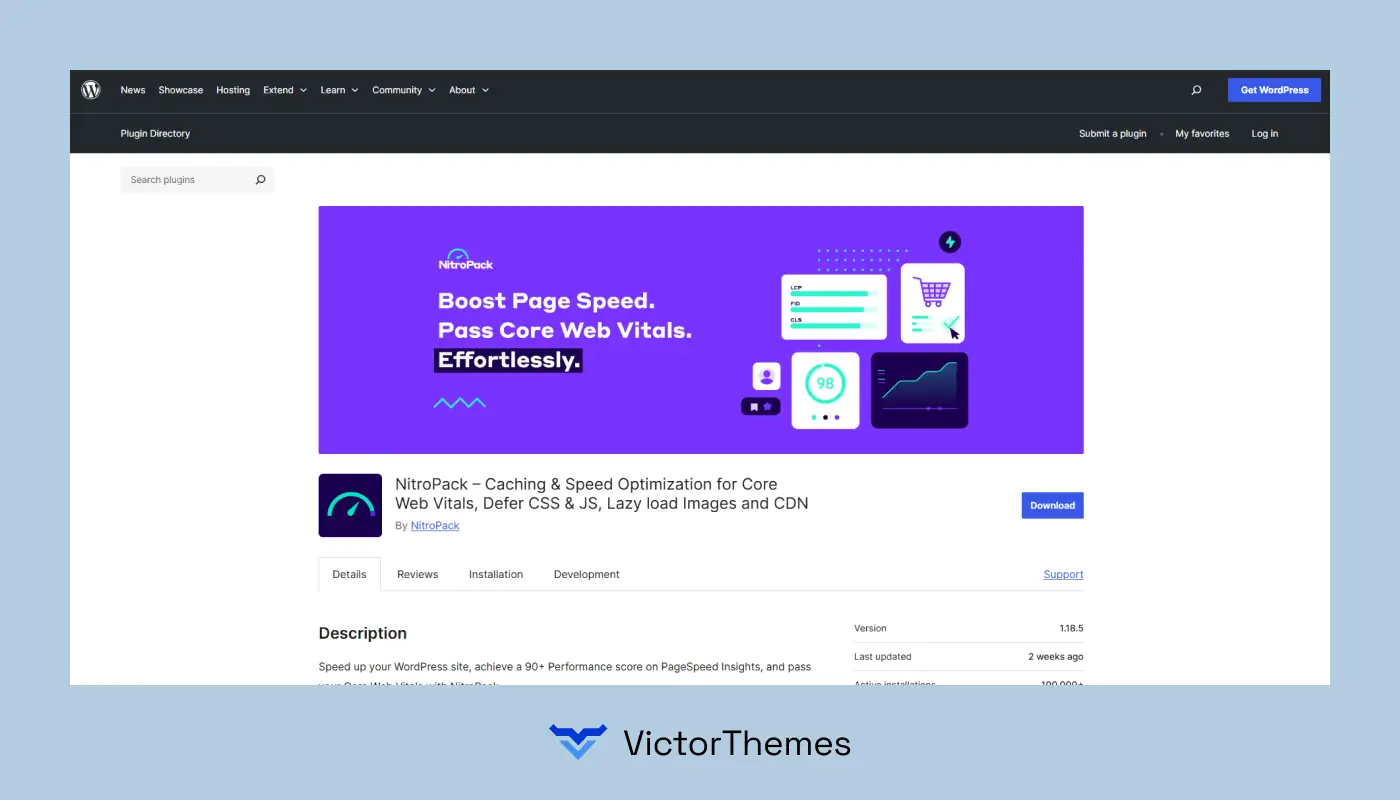
2. NitroPack
NitroPack offers an all-in-one optimization suite, combining caching, image optimization, and CDN integration. It’s designed for users who want a comprehensive solution with minimal configuration.
Consider For
- Websites using resource-intensive themes or plugins.
- Users seeking a set-it-and-forget-it optimization tool.
- Sites requiring global CDN support.
Not Consider For
- Users are looking for a free solution.
- Those who prefer granular control over optimization settings.
Price
Starts at $210/year.
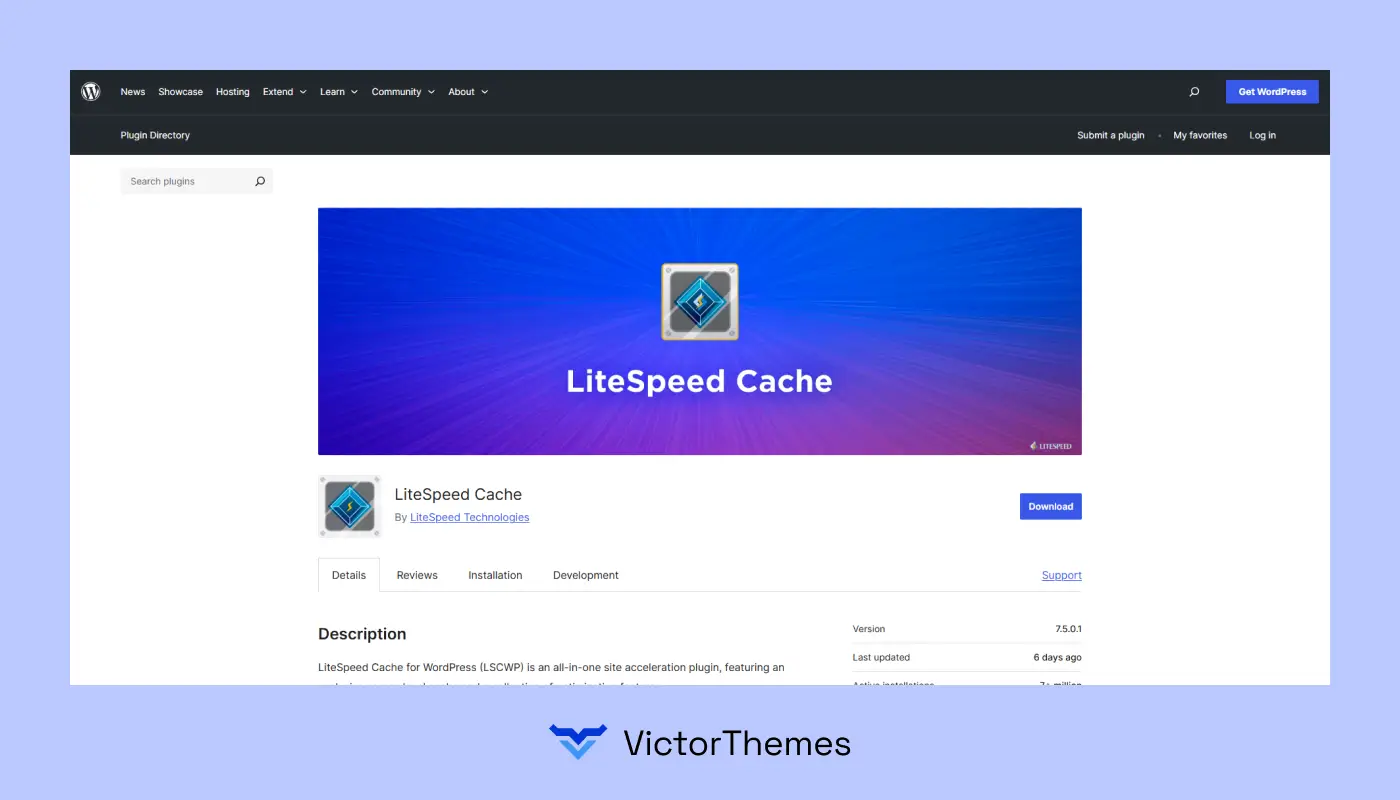
3. LiteSpeed Cache
LiteSpeed Cache is a free, server-level caching plugin that offers advanced optimization features. It’s particularly effective when used with LiteSpeed servers, but can also work with other server types.
Consider For
- Websites hosted on LiteSpeed servers.
- Users are seeking a free yet powerful optimization tool.
- Sites needing advanced caching and image optimization.
Not Consider For
- Users on non-LiteSpeed servers (may require additional configuration).
- Those seeking a simple, out-of-the-box solution.
Price
Free; premium features available.
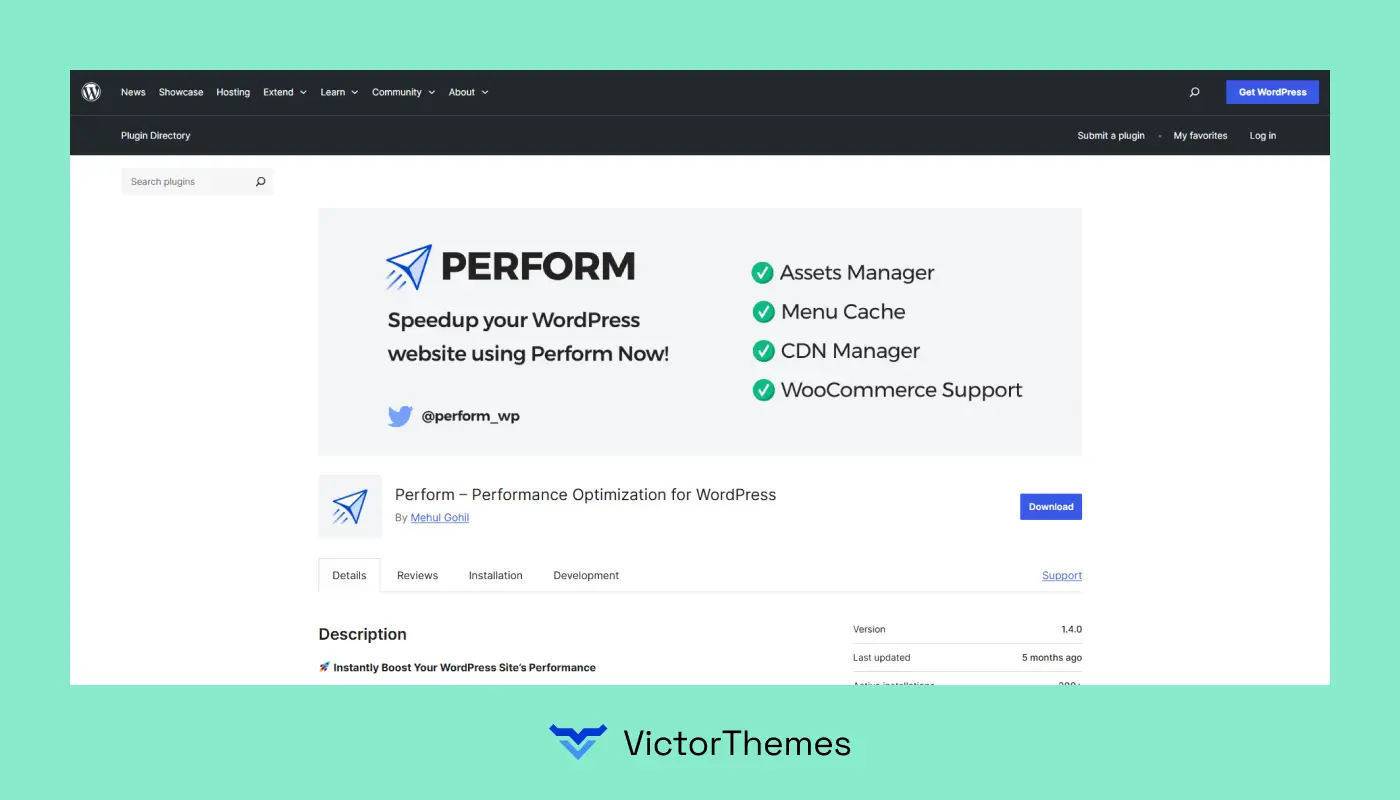
4. Perform
Perform is a lightweight plugin that focuses on disabling unnecessary WordPress features to reduce HTTP requests and improve performance. It’s ideal for users who want to fine-tune their site’s performance.
Consider For
- Advanced users are comfortable with performance tweaks.
- Websites need to disable specific WordPress features.
- Users seeking a minimalistic approach to optimization.
Not Consider For
- Beginners unfamiliar with WordPress internals.
- Users seeking an all-in-one optimization solution.
Price
Free to use.
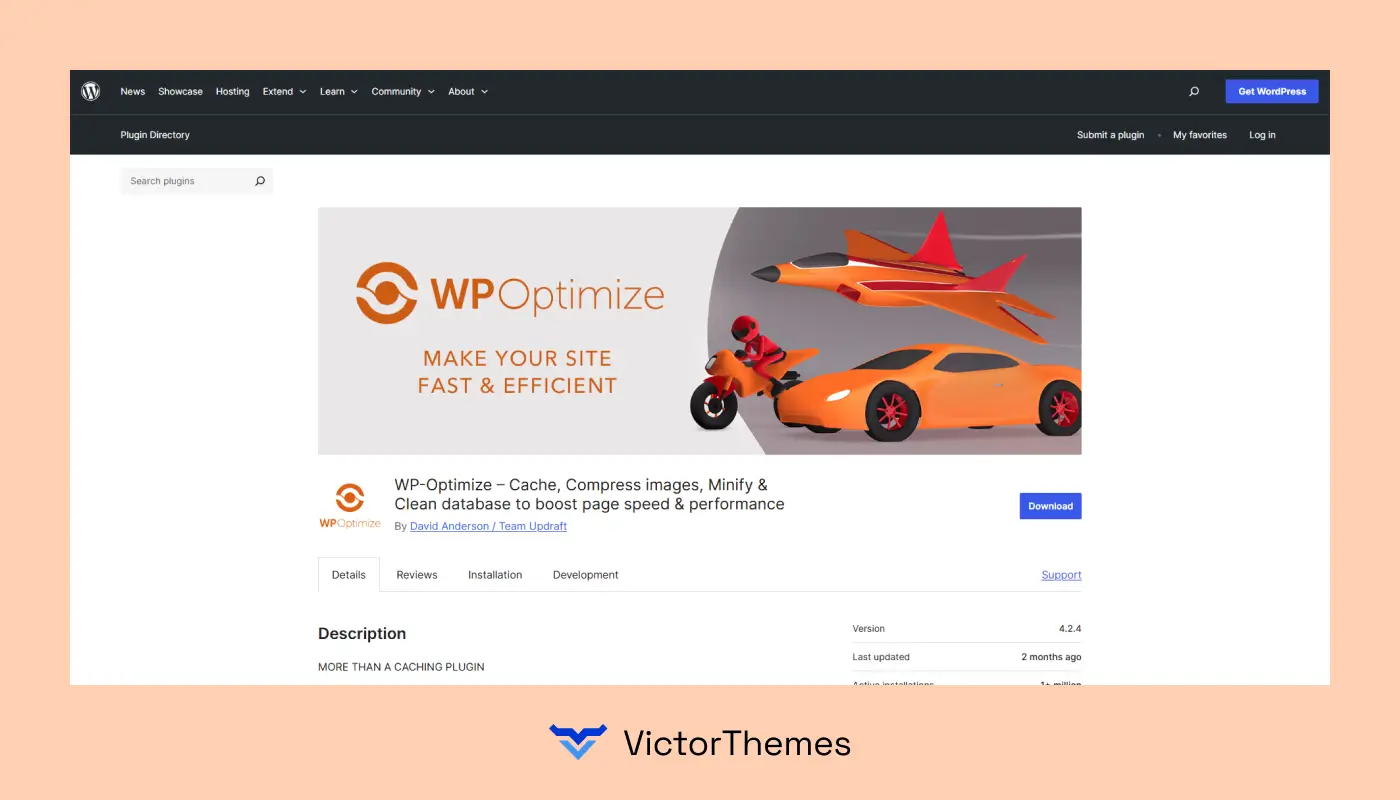
5. WP-Optimize
WP-Optimize is a free plugin that combines database cleaning, image compression, and caching. It’s an excellent choice for users looking for a comprehensive optimization tool without a price tag.
Consider For
- Users seeking a free, all-in-one optimization plugin.
- Websites need regular database maintenance.
- Users looking to compress images without additional plugins.
Not Consider For
- Websites require advanced caching features.
- Users seeking a premium support experience.
Price
Free; premium version available.
5. How to Test Your WordPress Website Speed?
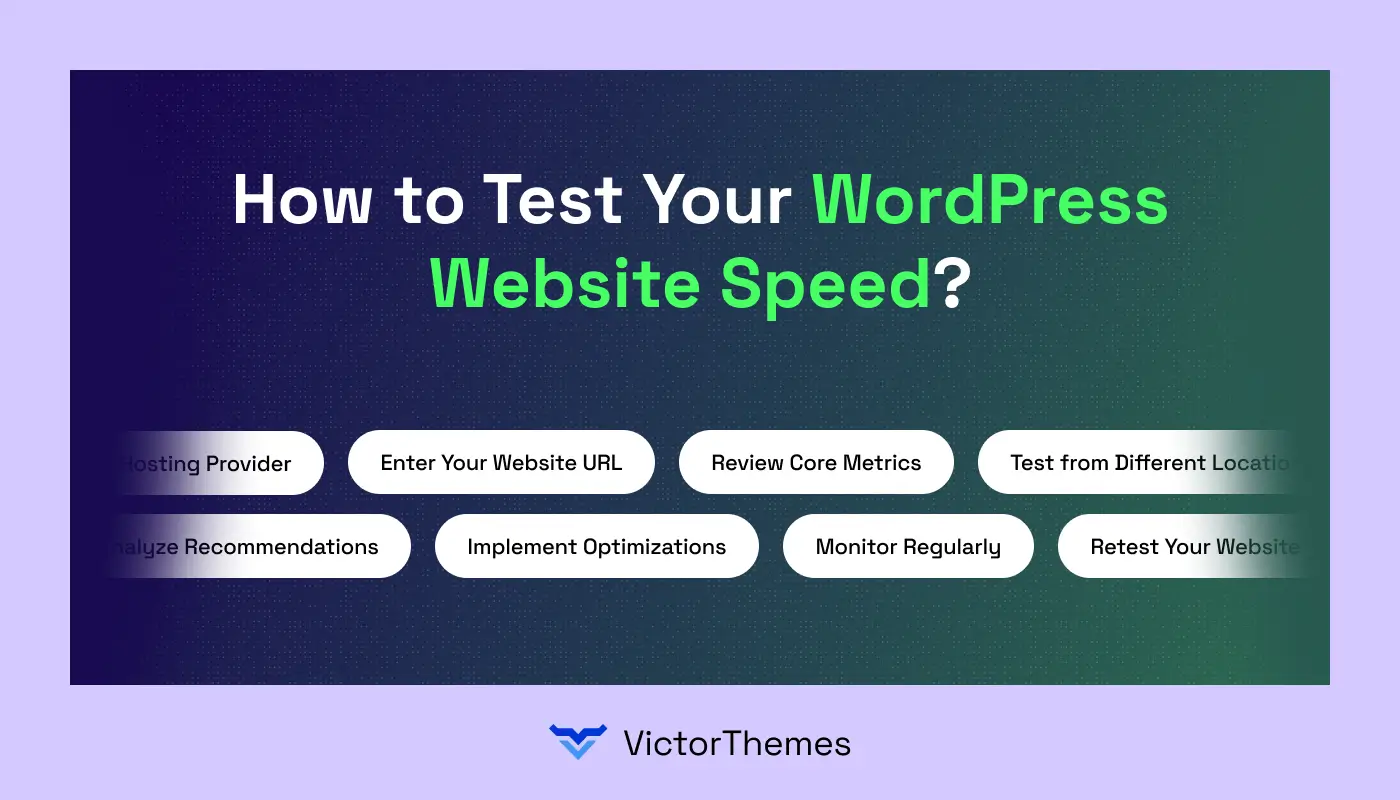
Step 1: Choose a Speed Testing Tool
Select a reliable tool like Google PageSpeed Insights, GTmetrix, or Pingdom. These tools provide detailed performance reports and recommendations.
Step 2: Enter Your Website URL
Input your website address into the tool and start the test. Most tools allow testing both desktop and mobile performance.
Step 3: Review Core Metrics
Focus on metrics like Largest Contentful Paint (LCP), First Input Delay (FID), and Cumulative Layout Shift (CLS) to understand user experience and page speed issues.
Step 4: Test from Different Locations
Check your website speed from multiple geographic locations to ensure consistent global performance and fast load times for all visitors.
Step 5: Analyze Recommendations
Most tools provide actionable suggestions such as optimizing images, leveraging browser caching, or minimizing CSS and JavaScript files.
Step 6: Implement Optimizations
Apply the recommended changes using plugins, theme settings, or manual adjustments to improve performance.
Step 7: Retest Your Website
After making changes, run the speed test again to confirm improvements and identify any remaining issues.
Step 8: Monitor Regularly
Check your website speed periodically to maintain optimal performance, especially after updates, new content, or plugin installations.
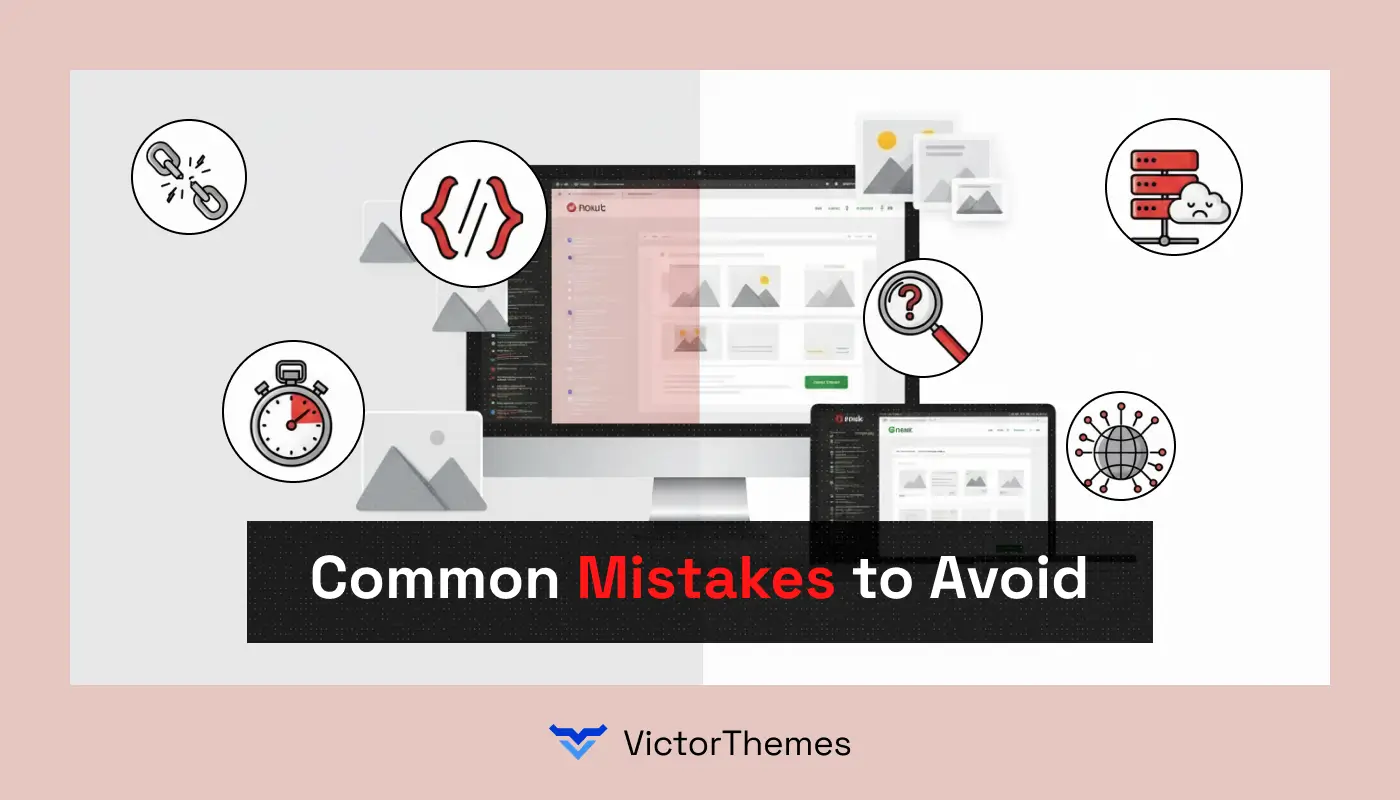
6. Common Mistakes to Avoid
Improving website speed is essential, but many site owners make mistakes that can hinder performance. Avoiding these pitfalls ensures your WordPress site loads quickly, ranks better in search engines, and provides a smooth user experience.
1. Ignoring Image Optimization
- Problem: Large, uncompressed images slow down your pages.
- Solution: Resize and compress images before uploading, or use an image optimization plugin.
2. Using Too Many Plugins
- Problem: Excessive or poorly coded plugins can increase load times.
- Solution: Limit plugins to only essential ones and remove unused or redundant plugins.
3. Not Enabling Caching
- Problem: Pages are generated dynamically for every visit, causing delays.
- Solution: Use a caching plugin to store static versions of pages for faster delivery.
4. Choosing a Poor Hosting Provider
- Problem: Slow or shared hosting can bottleneck server response times.
- Solution: Invest in high-quality hosting optimized for WordPress performance.
5. Overlooking Minification of CSS and JavaScript
- Problem: Large and unoptimized scripts block rendering and slow page load.
- Solution: Minify and combine CSS/JS files or use a plugin to handle it automatically.
6. Not Using a Content Delivery Network (CDN)
- Problem: Users far from your server experience slower load times.
- Solution: Implement a CDN to distribute content globally for faster access.
7. Advanced Tips For Experts
For developers and advanced WordPress users, optimizing website speed goes beyond basic plugins and image compression. Implementing advanced strategies ensures maximum performance and a seamless user experience.
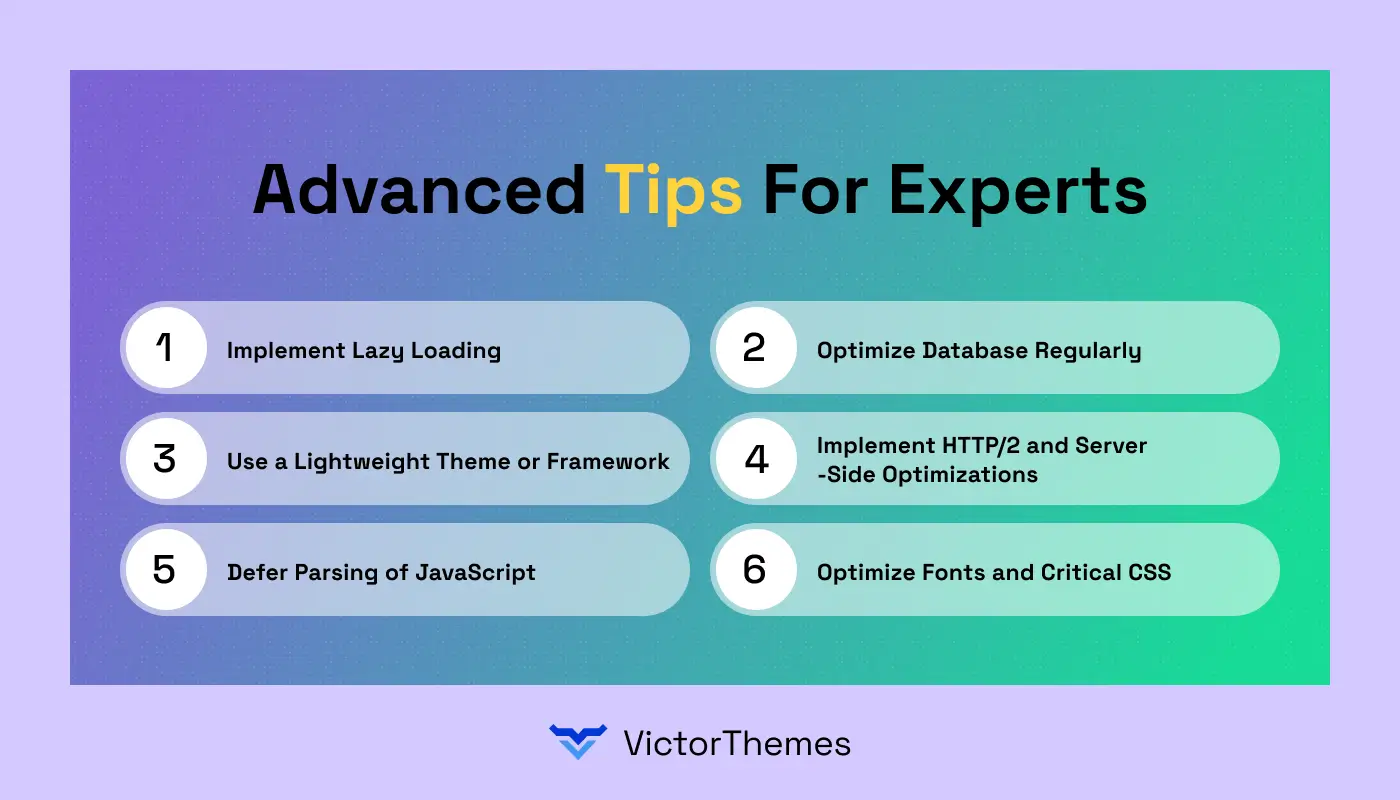
1. Implement Lazy Loading
Load images, videos, and other media only when they enter the viewport. This reduces initial page load times and improves perceived speed.
2. Optimize Database Regularly
Clean up post revisions, spam comments, and transient options to reduce database bloat. Consider using plugins or manual queries for deeper optimization.
3. Use a Lightweight Theme or Framework
Switch to themes built for performance with minimal bloat. Avoid feature-heavy themes that add unnecessary scripts and CSS.
4. Implement HTTP/2 and Server-Side Optimizations
Use HTTP/2 for faster multiplexing and to reduce latency. Configure server caching, GZIP compression, and keep PHP updated for optimal performance.
5. Defer Parsing of JavaScript
Delay non-critical JS scripts until after page load to reduce render-blocking and improve speed scores.
6. Optimize Fonts and Critical CSS
Host fonts locally, subset fonts, and inline critical CSS to minimize requests and improve render times.
Conclusion
As WordPress developers, we know that website speed plays a critical role in user satisfaction, search engine performance, and overall business success. Slow-loading sites can frustrate visitors, lower engagement, and reduce conversions.
By applying effective strategies such as caching, image optimization, content delivery networks, and minimizing scripts, we ensure your site performs at its best.
Regular monitoring, updates, and fine-tuning help maintain fast, reliable, and secure performance over time.
Partnering with experts allows you to focus on your business while we make sure your WordPress site remains fully optimized, responsive, and capable of delivering an outstanding experience to every visitor.
“Contact us today to boost your website speed and enhance performance.”
FAQ
1. Why is website speed important for my WordPress site?
Website speed affects user experience, search engine rankings, bounce rates, and conversion rates. A faster site keeps visitors engaged and improves SEO performance.
2. How can I test my WordPress site speed?
Use tools like Google PageSpeed Insights, GTmetrix, or Pingdom. These tools provide performance scores, recommendations, and insights for both desktop and mobile users.
3. Which plugins help improve WordPress speed?
Popular plugins include WP Rocket, NitroPack, LiteSpeed Cache, Perfmatters, and WP-Optimize. Each offers caching, image optimization, and performance improvements.
4. Can hosting affect my site speed?
Yes. A high-quality hosting provider with optimized servers is crucial for fast load times. Shared or low-quality hosting can significantly slow your site.
5. How often should I optimize my WordPress site?
Regular optimization is recommended. Check site speed monthly or after major updates, new plugin installations, or content additions to ensure consistent performance.
6. What are common mistakes that slow down a WordPress site?
Overusing plugins, unoptimized images, heavy themes, no caching, excessive scripts, and outdated software are the main reasons for slow performance.


Envato
